Download Pinterest GIF Without Losing Quality (2026)
You find a perfect GIF on Pinterest. It is funny, cute, or just right for your project. You want to keep it.
So you try to save it. But the file comes out blurry. Or it turns into a still picture. Or it becomes a heavy video that will not play in your chat app.
Sound familiar? You are not alone. Lots of people face this problem.
The good news is simple. You can save a Pinterest GIF in full quality. You just need the right method. In this guide, I will show you how, step by step. It works on iPhone, Android, and PC. The words are easy and the steps are short.
Let's start.
What Is a Pinterest GIF?
A GIF is a short clip that plays in a loop. It has no sound. It just repeats again and again.
People use GIFs for many things. Some are jokes and reactions. Some are art. Some show a quick recipe step or a small how-to trick.
On Pinterest, you will see two kinds of animated pins:
• Real GIF files. The creator uploaded a .gif file.
• Short videos that look like GIFs. They loop and have no sound, but the file is really a video, often an MP4.
Why does this matter? Because the two types save in different ways. Pinterest decides how a pin is stored. So the file you get depends on what the creator uploaded.
A good downloader looks at the pin and gives you the best file it can find. That is the idea behind everything in this guide.
Why Do Pinterest GIFs Lose Quality?
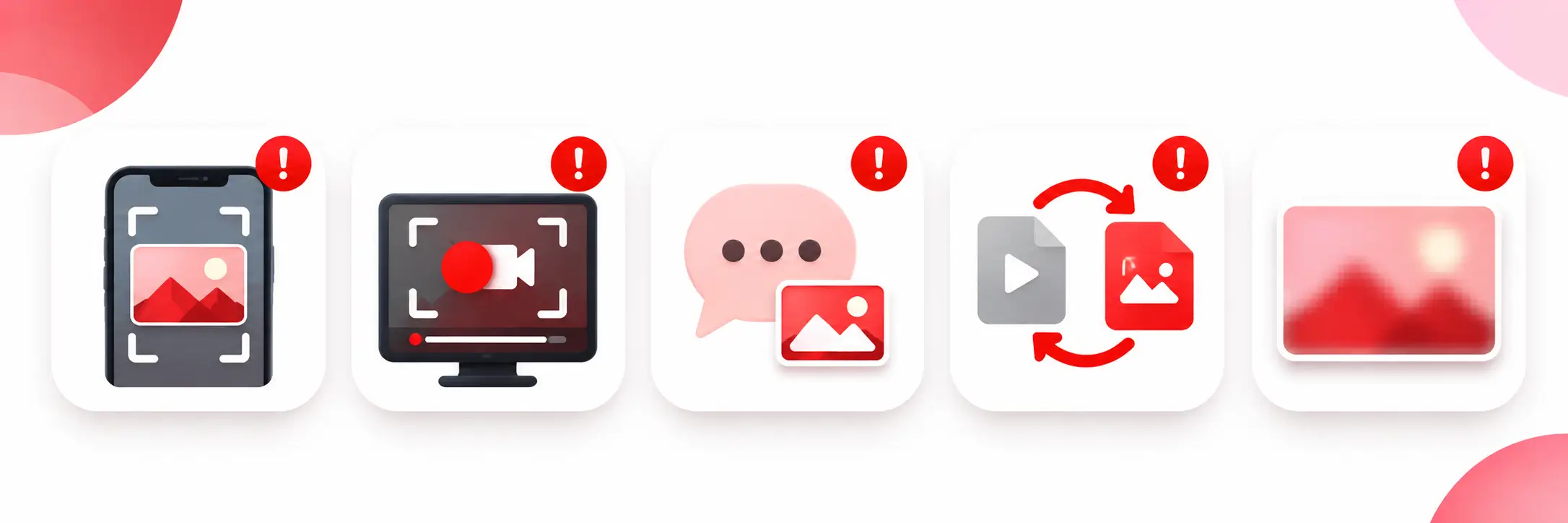
Before we fix the problem, let's see what causes it. Most quality loss comes from one of these five things.
1. Screenshots and screen recordings
A screenshot only captures one frame. It is not a GIF anymore.
A screen recording is better, but it still copies your screen. It does not copy the real file. It can add blur, black bars, and extra buttons in the video.
2. Chat apps
Many chat apps shrink files to save data. Some even turn a GIF into a small video. When you send your saved GIF through chat, it can look worse than before.
3. Free online converters
Some converters cut frames and shrink the size to make the file lighter. The result is a choppy, blurry clip.
4. Saving the preview
The small preview on a web page is often a lower size copy. If you save that, you get less detail.
5. The GIF format itself
This one is not your fault. A GIF can show only 256 colors in each frame. So smooth color changes, like a sunset, can look rough.
Here is the big lesson. The best quality comes from the original file. Not from a copy of a copy.
What You Need Before You Start
You do not need much. Here is the full list:
• The link of the Pinterest pin (the pin must be public)
• A web browser on your phone or computer
• About one minute
You do not need to sign up. You do not need to install an app. You do not need a Pinterest account to use the downloader.
How to Download a Pinterest GIF (Step by Step)
We will use PintDownloader. It is a free tool made to save Pinterest videos, images, and GIFs without a watermark. The steps are the same on every device.
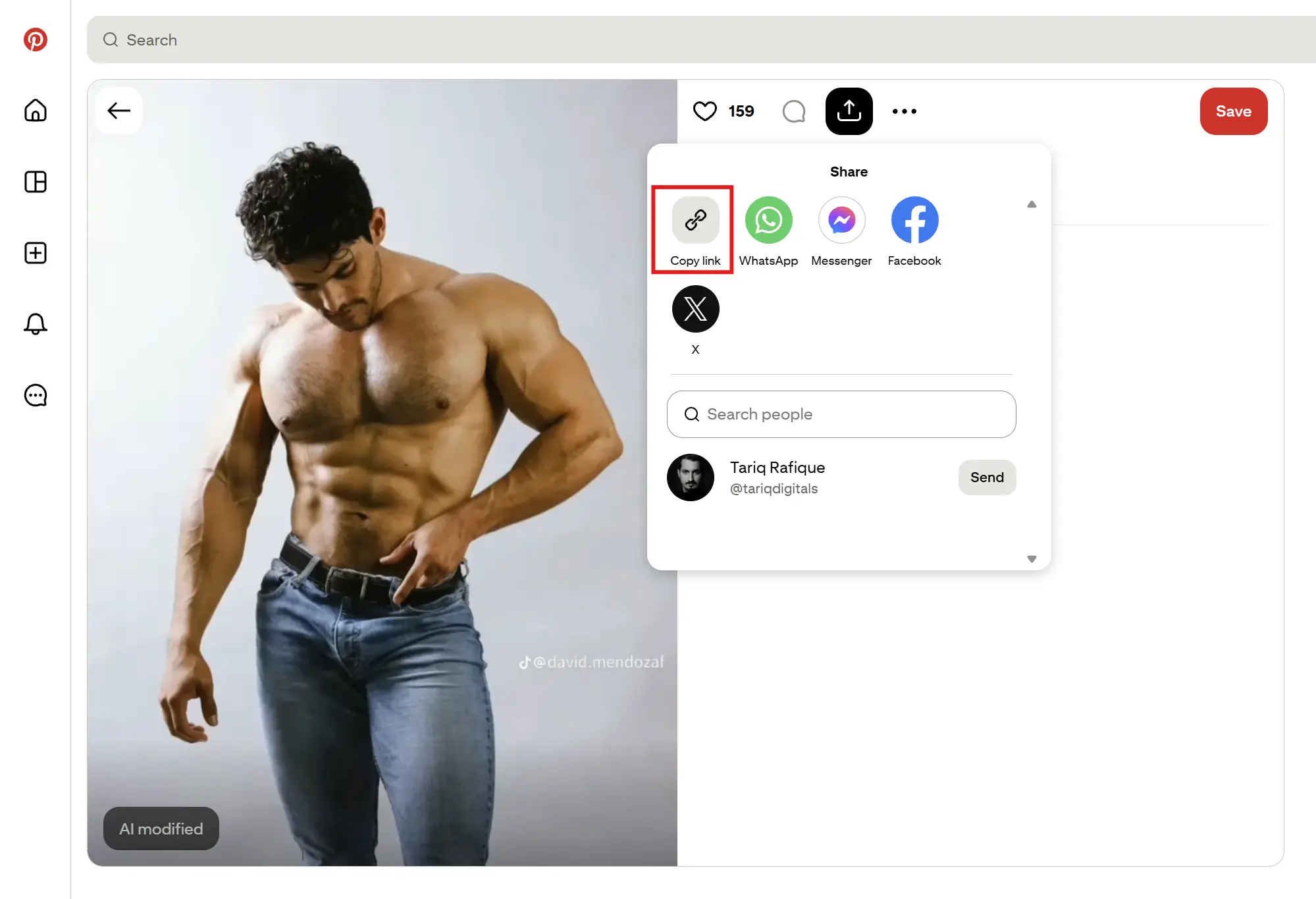
Step 1: Copy the Pin Link
Open Pinterest in the app or in your browser. Find the GIF you want and open it.
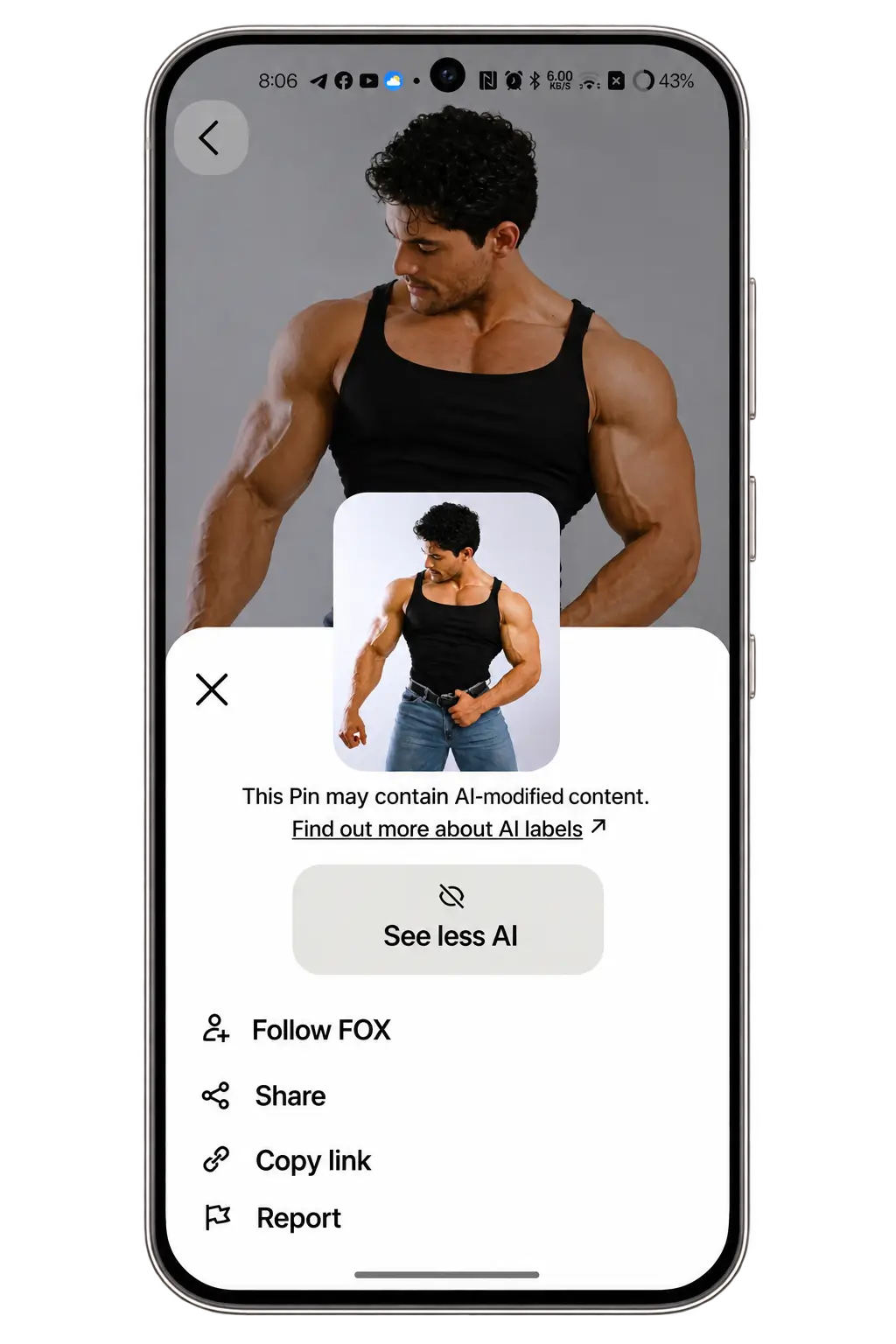
Now tap the three dots (•••). On the newest Pinterest app, the dots are at the bottom right. On older versions, they are at the top right.
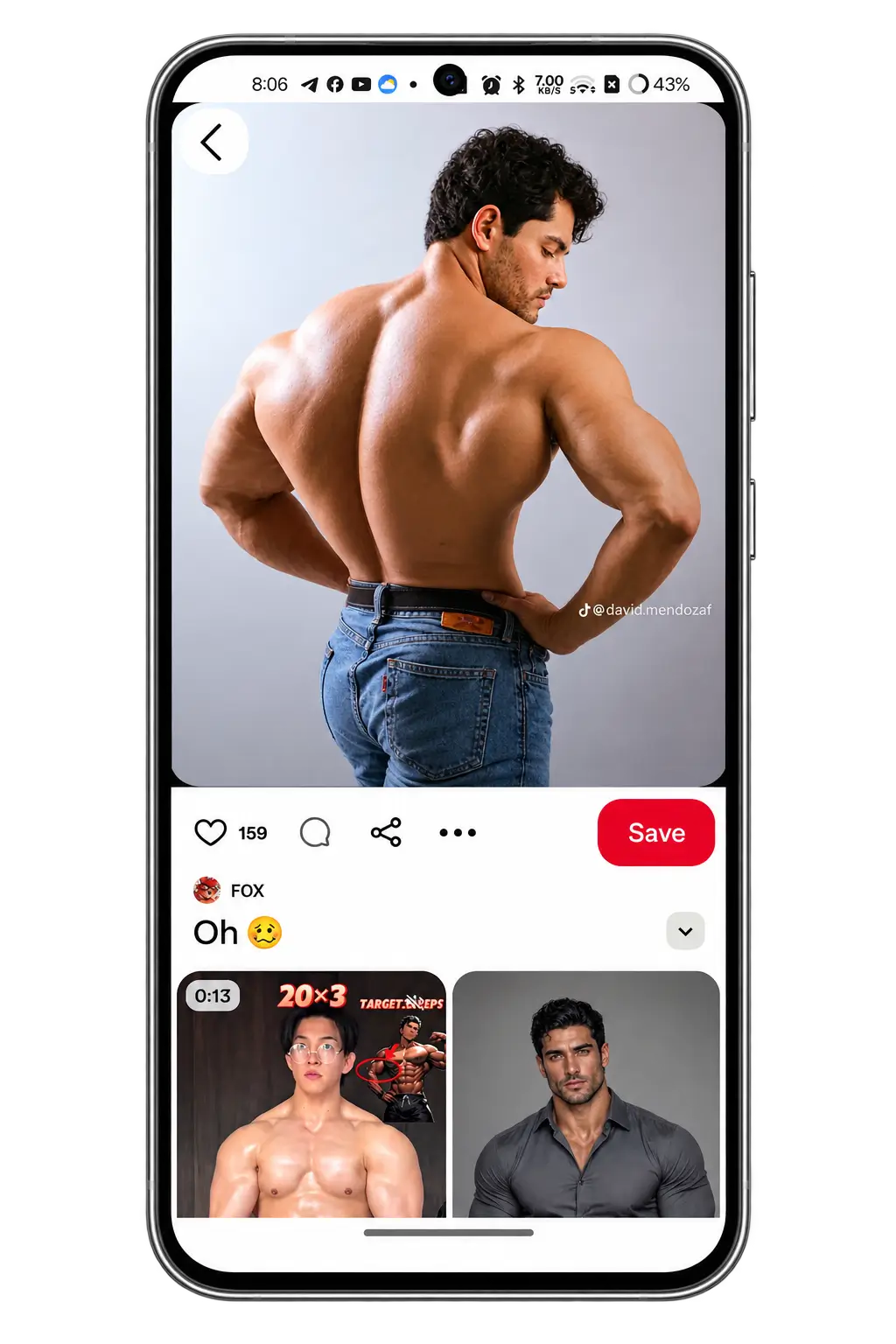
Tap Copy Link.
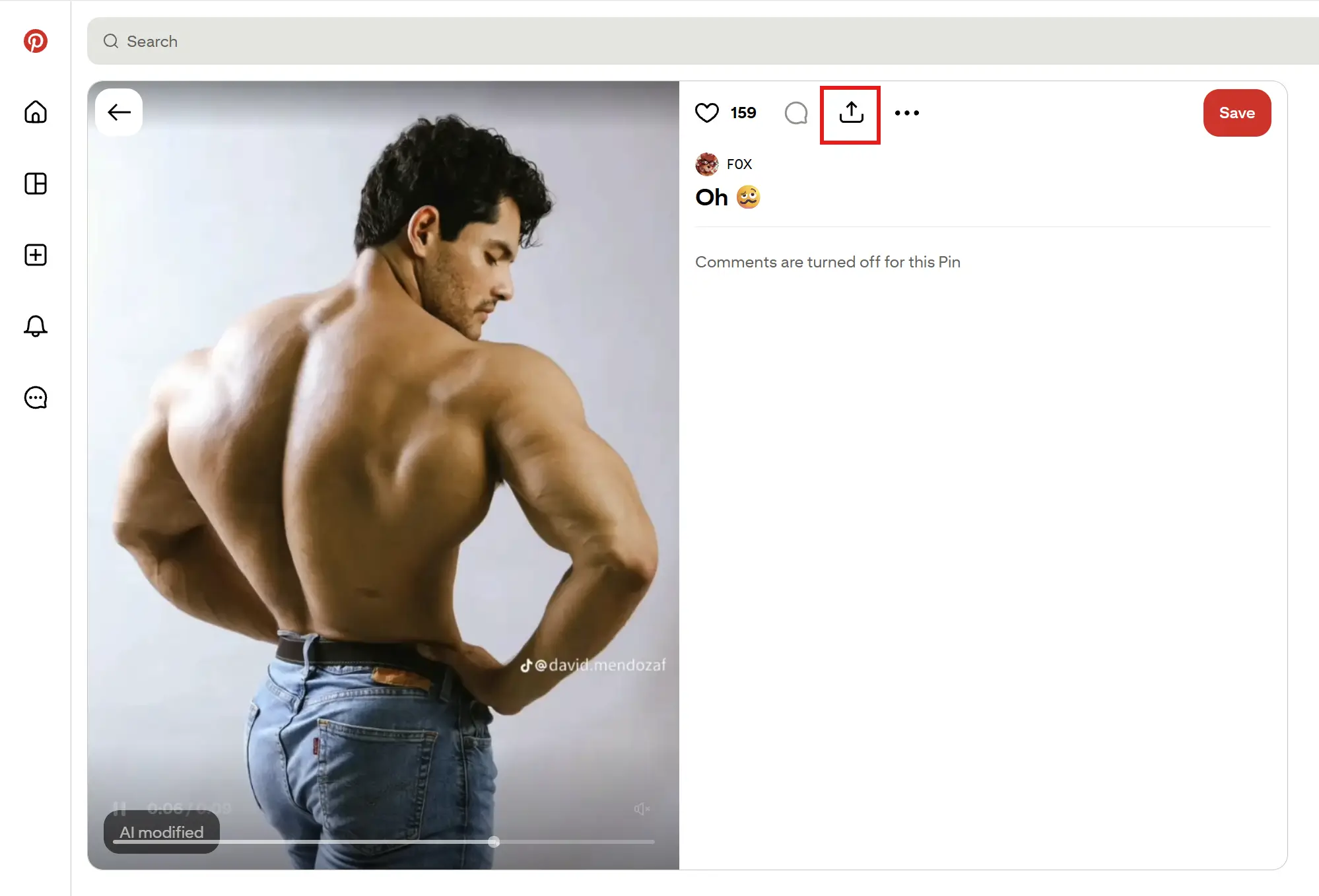
On a computer, you can also copy the link from the address bar at the top of your browser.
On a computer, you can also copy the link from the address bar at the top of your browser.
Step 2: Open PintDownloader
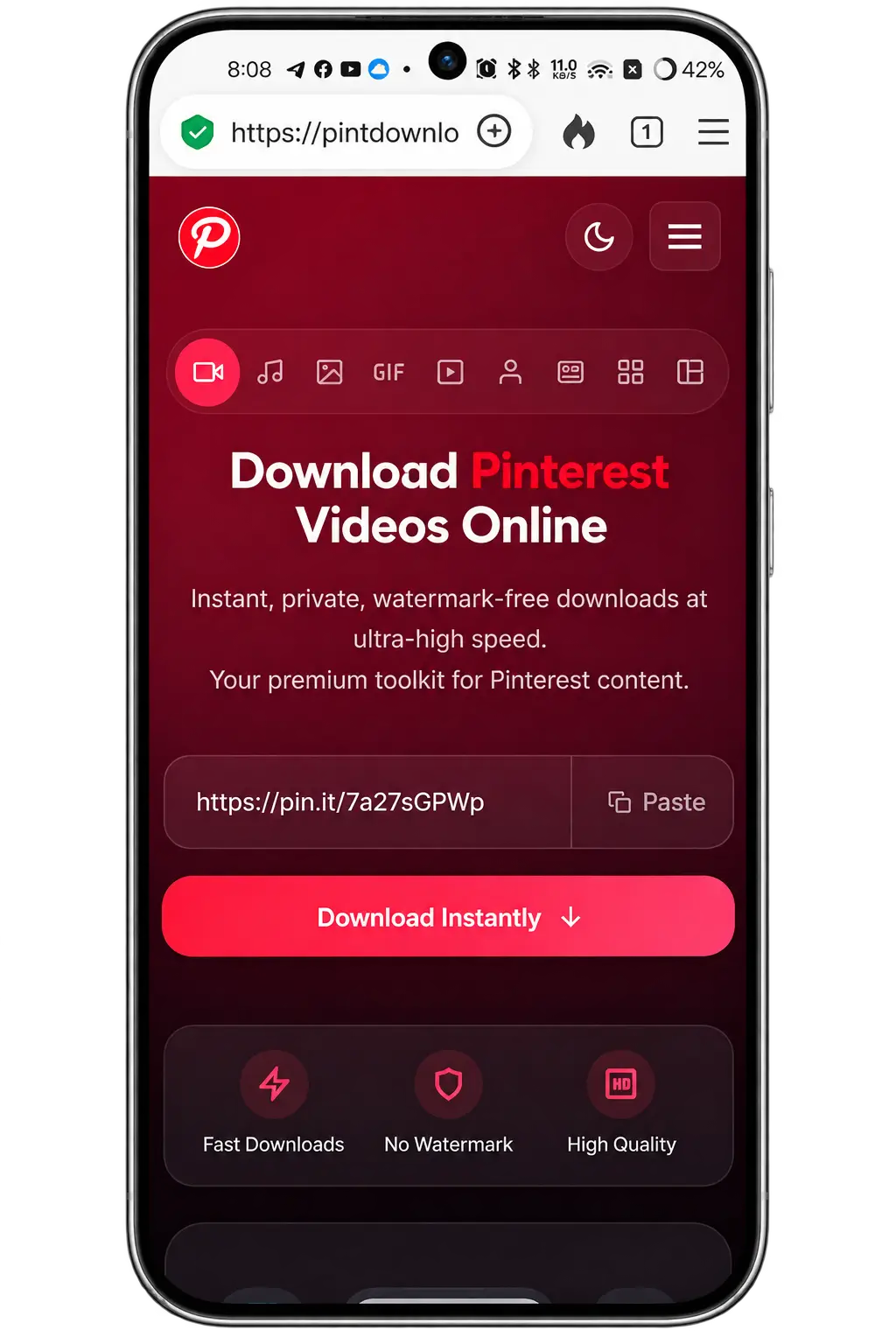
Open a new tab and go to pintdownloader.com. You will see a box at the top of the page.
Step 3: Paste the Link and Tap Fetch Media
Paste your link into the box. Then tap the Fetch Media button.
Wait a few seconds. You will see a progress bar. Do not close the page while it works.
Step 4: Check the Preview
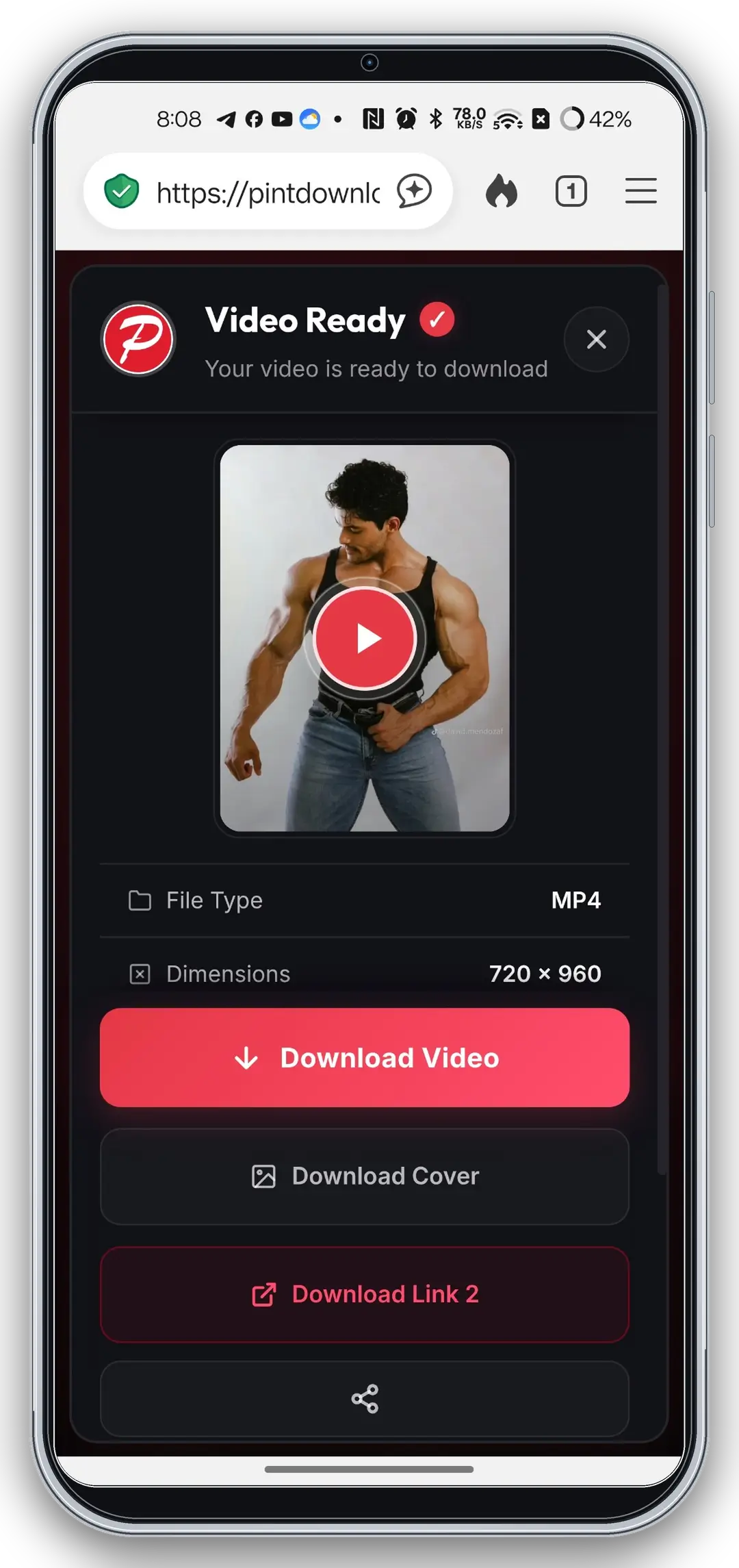
A preview of your media will show up. Look at it for a moment. Does it loop? Does it look sharp? If yes, you are ready.
Step 5: Click Force Download
Click the Force Download button. The file will save to your device. That is it. You now have the original file, not a copy of a copy.
Yes, it works on iPhone. Here is the easy way.
Open the pin in the Pinterest app. Tap the three dots and choose Copy Link.
Open Safari and go to pintdownloader.com.
Paste the link and tap Fetch Media.
Tap Force Download. If your iPhone asks, tap Download.
Open the Files app and look in the Downloads folder.
Want it in your Photos app? Open the file in Files, tap the share icon, and choose the save option. If the file is a real GIF, Photos will show it as an animated image. If it is a video, it will play like a normal video.
How to Save a Pinterest GIF on Android
Android is just as simple.
Open the pin in the Pinterest app. Tap the three dots and choose Copy Link.
Open Chrome and go to pintdownloader.com.
Paste the link and tap Fetch Media.
Tap Force Download.
Open your Files app and go to Downloads. Most gallery apps will also show it.
If the file does not appear in your gallery right away, wait a moment or restart the gallery app.
How to Save a Pinterest GIF on PC or Mac
On a computer, it is even faster.
Open the GIF pin on Pinterest. Copy the link from the address bar.
Go to pintdownloader.com in a new tab.
Paste the link and click Fetch Media.
Click Force Download.
Open your Downloads folder. In Chrome on Windows, you can press Ctrl + J to see your recent downloads.
Tip: Give the file a clear name right away. For example, "cat-dance-loop" is better than "download (7)". It will save you time later.
GIF or MP4: Which One Should You Save?
Sometimes your download is a GIF. Sometimes it is an MP4. Neither is bad. Each one is better for different jobs.
| What matters | GIF | MP4 |
|---|---|---|
| Colors | Limited to 256 colors per frame | Smoother colors and gradients |
| File Size | Often bigger | Often smaller |
| Sound | No sound | Can have sound |
| Works in most chat apps | Yes | Yes, as a short clip |
| Best for | Memes, stickers, reactions | Slides, social posts, editing |
A simple rule: if you want a classic loop for chat, a GIF is fine. If you want the best look and a small file, MP4 is often the smarter pick.
Common Problems and Easy Fixes
Something went wrong? Do not worry. Most issues have a simple fix.
| Problem | Why it happens | Easy fix |
|---|---|---|
| The link does not work | The link was cut or copied wrong | Copy the full link again and paste it |
| Nothing downloads | The pin is private or was deleted | Try a public pin that you can open without logging in |
| The file is a video, not a GIF | The pin was stored as a video | Keep it as MP4, or turn it into a GIF in an editing app |
| The GIF does not move | Some gallery apps show only the first frame | Open it in your browser or a chat app to check |
| The page is slow | Pinterest may be slow for a moment | Wait a bit, refresh, and try again |
| The file is too big | Long or high detail clip | Trim the clip, or use the MP4 version |
Final Thoughts
Saving a Pinterest GIF does not have to be hard. The secret is to start from the original file and avoid extra steps that cause blur.
Copy the link. Paste it into the tool. Fetch the media. Click download. That is the whole job.
If you want to try it now, open PintDownloader, paste your link, and save your favorite GIF in a minute.
Found this guide helpful? Share it with a friend who loves Pinterest.